Preview Panel
The following page describes all the elements of the preview panel. It refers to the numbers in the diagram below.
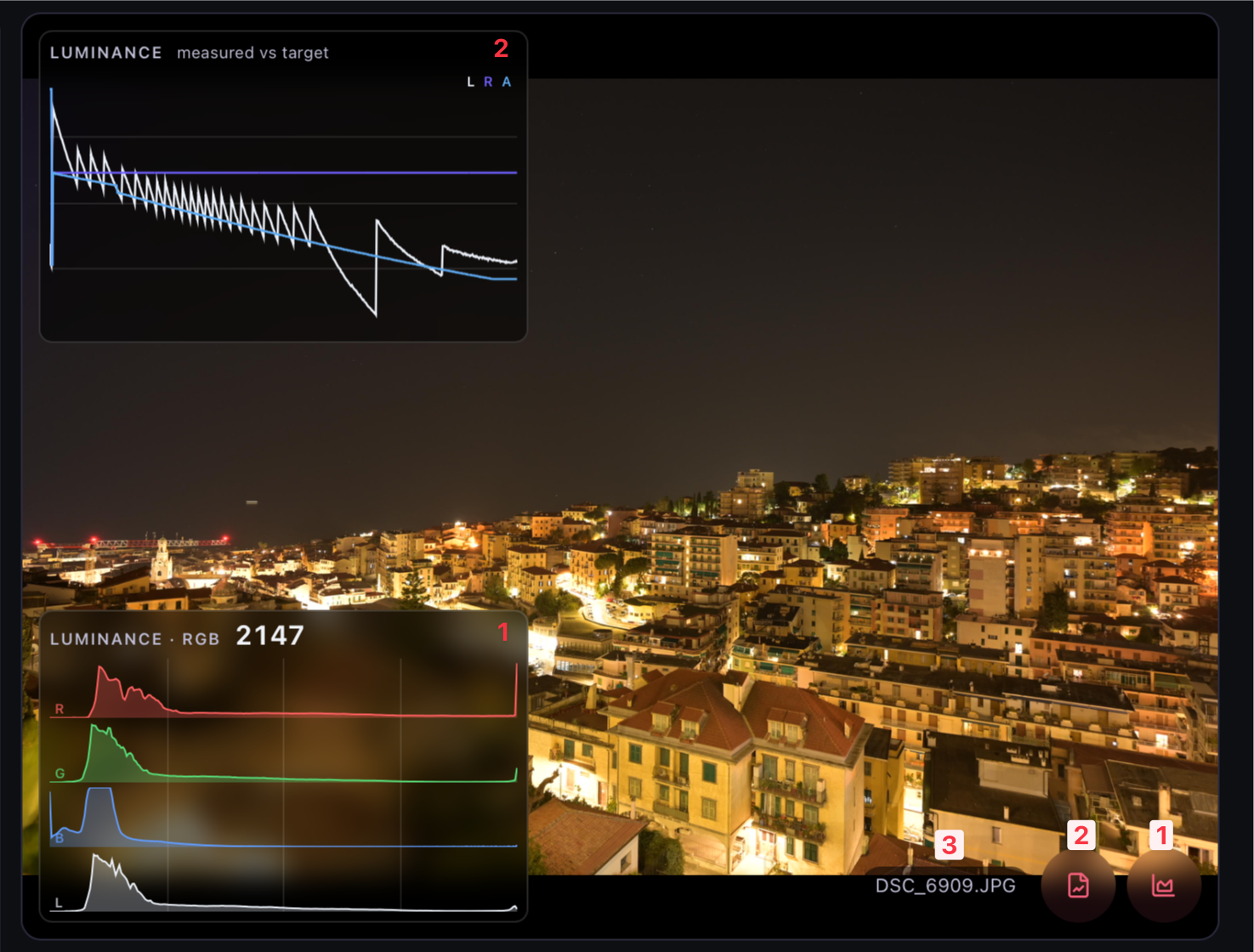
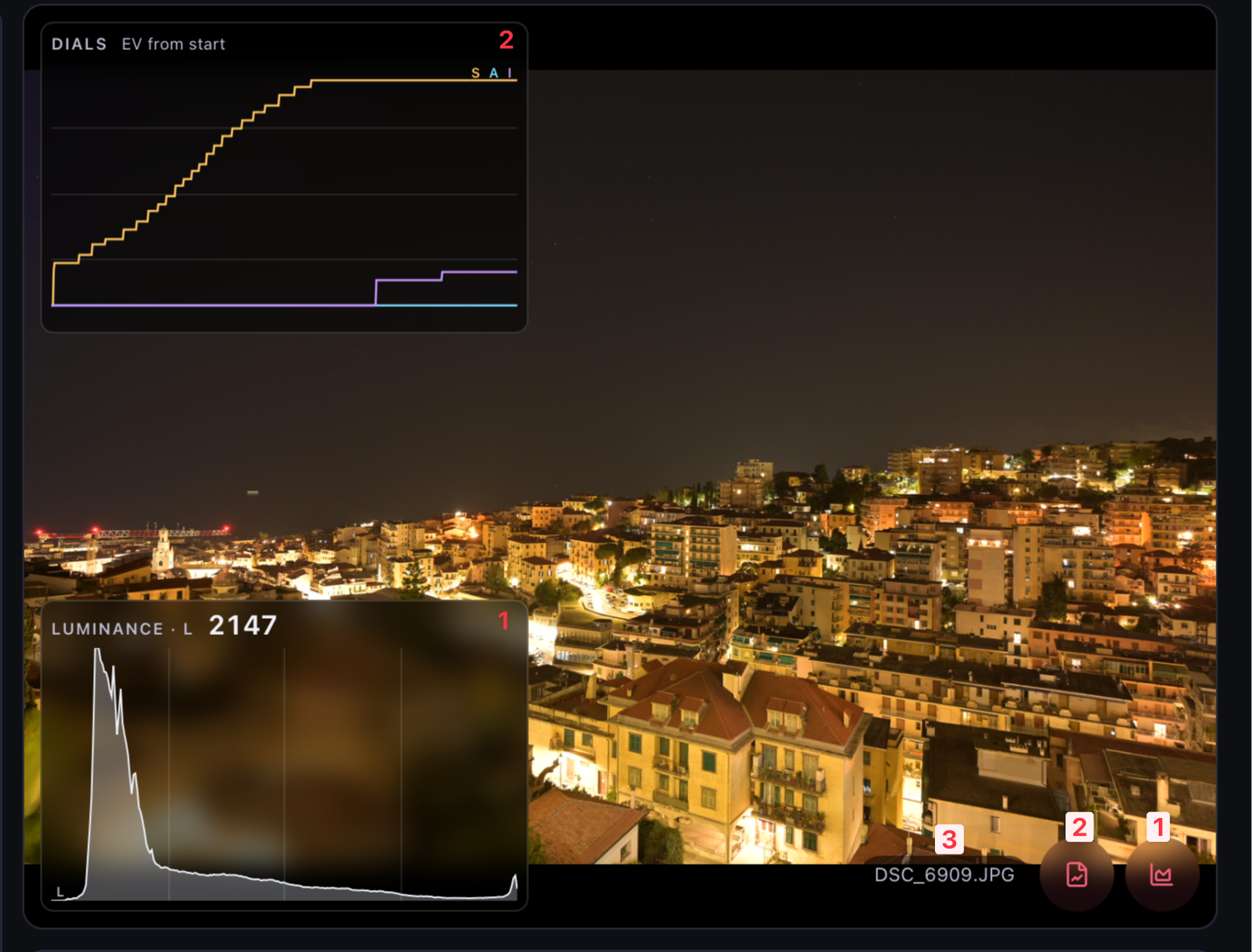
The Preview Panel displays the current JPG preview of the last photo taken. In addition, the following information are displayed:
- The histogram of the current JPG preview (1). The histogram can be shown or hidden using the corresponding button in the lower-right corner of the Preview Panel. Click the overlay to switch between the SUM and RGB+SUM channels (compare screenshots).
- The luminance progress curve for the current time-lapse sequence or the ramping curve (2). For more information, see the section titled “Luminance Progress Curve” and “Ramping Curve” down below. You can switch between the two diagrams by clicking on the overlay (see screenshots).
- The filename of the displayed JPG file. (3)
Luminance Progress Curve
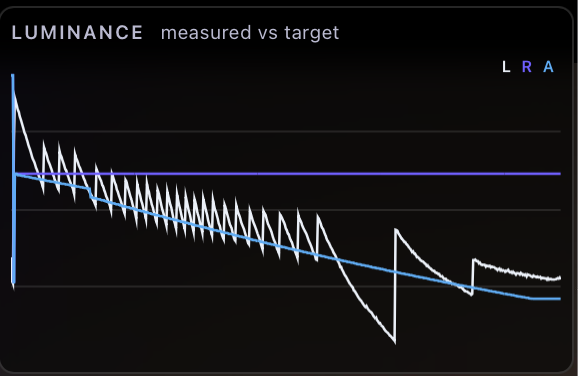
The luminance progress curve displays the luminance of the image sequence over time compared to the reference luminance value. There are the following three curves:
- The image luminance curve (white). This curve represents the luminance value of the captured images
- The static luminance reference value (purple), which is set in the Holy Grail settings in the Control Panel.
- The corrected luminance reference value (blue), which is calculated by adding the auto luminance setting to the static luminance reference value.
Ramping Curve
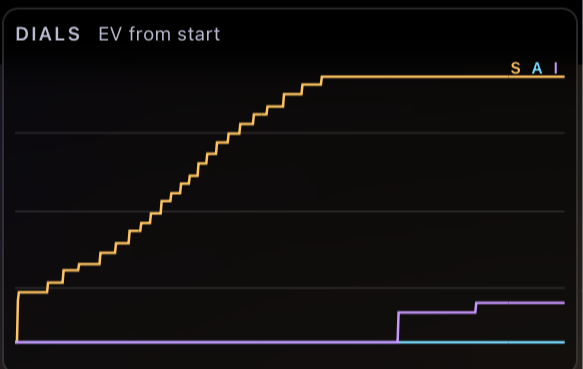
The three ramping curves represent the moments when the camera parameters ...
- shutter speed (yellow)
- ISO (purple)
- aperture (blue)
... were adjusted relativ to the recording time.